Showing posts with label Gmail. Show all posts

Friday, 30 October 2020

Convert Gmail to PST | Export Emails, Contacts, Calendars Into PST Format

 Google’s email service (Gmail) is of the best and widely used email client – it’s completely free, provides a generous amount of storage space, and multiple applications for business needs. But the one thing that lacks in Gmail is offline access to its emails. There are a bunch of users who like to access their emails in a desktop-based email client such as MS Outlook. However, there is no direct option available in Gmail for converting emails into PST format. Therefore, in the article, we will provide the a-z process to convert Gmail to PST format to access emails in MS Outlook.


Steps to Manually Convert Gmail to PST Using MS Outlook


The manual solution for converting Gmail emails into PST files is by using the MS Outlook application. Follow the step-by-step process for converting emails to PST format:


1. Launch MS Outlook application and go to File tab.


2. Click on Add Account option to configure Gmail account in Outlook


3. Enter the details of your Gmail account and click on Finish button.


4. Once the configuration is finished, go to File tab again and click on Open & Export and then Import/Export.


5. In the Import and Export Wizard, click on “Export to a file” and click on Next.


6. Next from Export to a file window, click on “Outlook data file (.pst)” >> Next.


7. Select the Gmail account for converting emails to PST format >> Next


8. Browse the location where you wish to save the converted emails >> Finish.


That’s it! You can finally convert Gmail emails to PST format and now you can import the PST file in MS Outlook.


Limitation Of Manual Approach


Although the manual way of converting Gmail to PST file is free to do but the process only converts emails. For contacts and calendar, you need to use a different approach for it. Additionally, the synchronization method is not efficient as a loss/deletion of emails from MS Outlook will also lead to deleting from Gmail mailbox.


Directly convert Gmail to PST Via Automated Tool


Worried about data security?  Then don’t go through the hassle of configuring your Gmail account in MS Outlook, then the best solution is to take the help of a professional Gmail Backup Utility. This utility doesn’t require MS Outlook at all for converting Gmail emails in PST format. Additionally, apart from emails, this utility also provides the solution for converting contacts and calendars in PST formats. This way you will not only have your emails for offline access but also your contacts and calendar information. So without wasting any time, let's see how the tool works:


1. First, click on the Download button to get the free version of the utility


2. Install and launch the software your Win / Mac computer.


3. Click on the “Activate” button to request for licensed version, else skip to the test demo version of tool

Note: The free demo version of the utility allows exporting first 100 emails and 25 other items (contacts and calendar) in the desired file format.)


4. Once activation is finished, select the category of items to convert from the tool window.


5. Now from the email-format section, select “Outlook (PST)” as export format.


6. Browse the location to store the converted Gmail emails.


7. Click on the Apply Filter option to convert emails of a particular Gmail folder.


8. Finally, click on the Start button to begin the conversion process.


Why Choose Automated Tool Over Manual Approach?


Apart from the benefit to convert emails, contacts, and calendar simultaneously, the tool provides various other benefits also:


1. Downloads Google drive documents on local computer

2. Provides multiple formats for the conversion of Gmail emails, such as PDF, MBOX, PST, EML, MSG, etc.

3. Folder filter option for converting particular Gmail folder data.

4. Delete After Download feature to clear up Gmail server space after converting emails.

5. Incremental option to skip data converted in the previous conversion attempt.

6. Option to save the converted Gmail emails at desired location (Internal or External media)

7. Date-Range filter option to convert emails of particular date-range.


Final Words


There is a huge demand from Gmail users for the methods to convert Gmail to PST format for offline reading. Once you get the PST file you can import the PST file using the “Import” feature of MS Outlook. And, you are done, you can choose any of the above-mentioned solutions and you will be guaranteed to get the output you need. The only difference is flexibility and ease in completion of the job. So choose the method wisely and start converting your Gmail emails in PST format.
Monday, 15 May 2017

Gmail to Office 365 Migration Step by Step Without Any Omission

Gmail and Office 365 are popularly known web-based email application used by users. Both of them are the cloud-based application that needs internet connection to access account. There is not much difference in the services offered by Gmail and Office 365. However, in the case of a business organization, most of the users prefer Office 365 as an email application. It is because MS Office 365 provides more professional environment, different plans and versions for different users. Moreover, Office 365 offer more storage space when compared with Gmail. Microsoft Office provides both online and offline versions of all its applications and Office 365 is its inbuilt application so, can be used in offline mode also. All these reasons make users migrate from Gmail to Office 365.

Manual Solution to Import Gmail to Office 365

Users are looking for a solution to migrate email from Gmail to Office 365. Thus, to perform Gmail account to Office 365 migration manually using IMAP, follow the steps listed below properly:

Step 1 - Create Office 365 Mailbox: To create an Office 365 mailbox, a user needs to add either single or multiple users at once. Always keep in mind while adding users to Office 365 mailbox provide a license to them. Before starting migration process, it is important to have Office 365 account for each user.

Step 2 - Create Gmail Mailboxes List for Migration: Here you need to create the list of Gmail mailboxes that you want to migrate yo Office 365. The simple and easy way to create list is using Excel. To do the same follow the steps given below:

Note: To perform the migration and to create a list, a user requires password of all Gmail account that you want to migrate.

1. Open Microsoft Excel application on the local machine

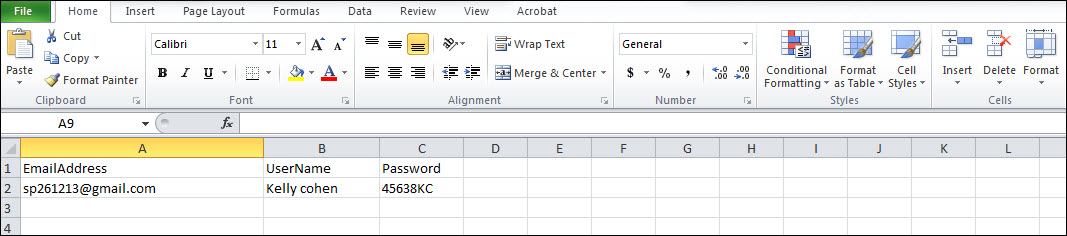
2. Then, open a New Worksheet in Excel, that contains following attributes:

  • In Cell A1: EmailAddress
  • In Cell B1: UserName
  • In Cell C1: Password

3. After that, enter all Gmail account email address, username and password, which you need to migrate from Gmail


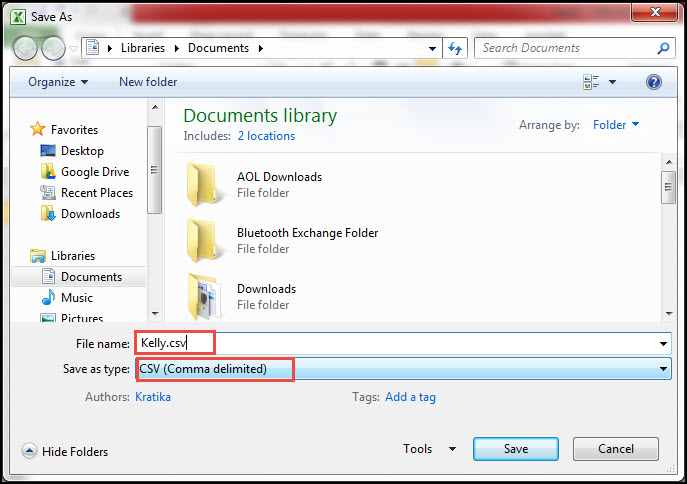
4. Then, you need to Save the file in CSV file format and exit MS Excel Application.


Step 3 - Verify Connection Between Gmail and Office 365

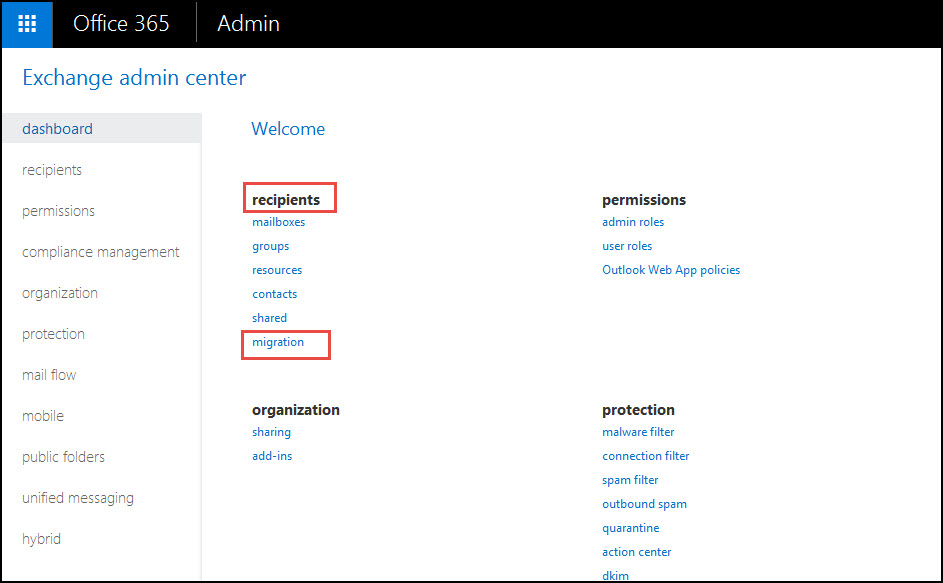
1. First, go to Exchange Admin Center

2. After that, navigate to Recipients >> Migration option


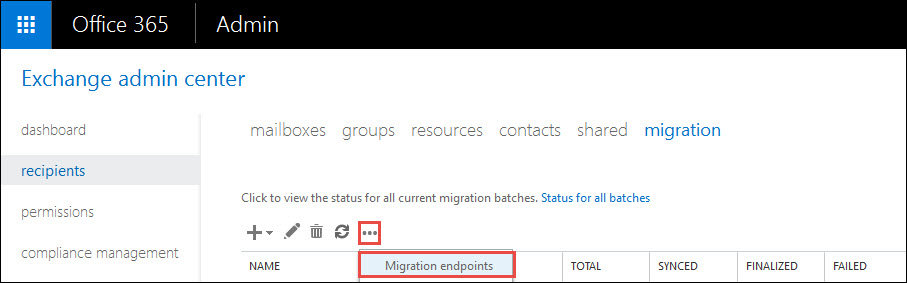
3. Then, click on More Icon >> Migration Endpoints option


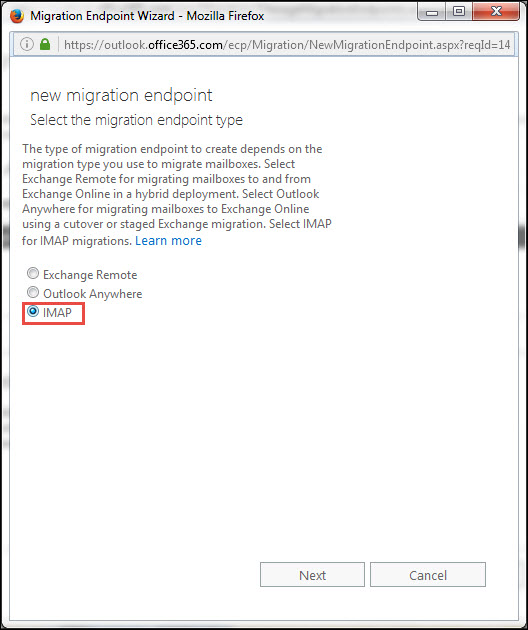
4. Now, to create migration end point, click on New (+) and choose IMAP radio button


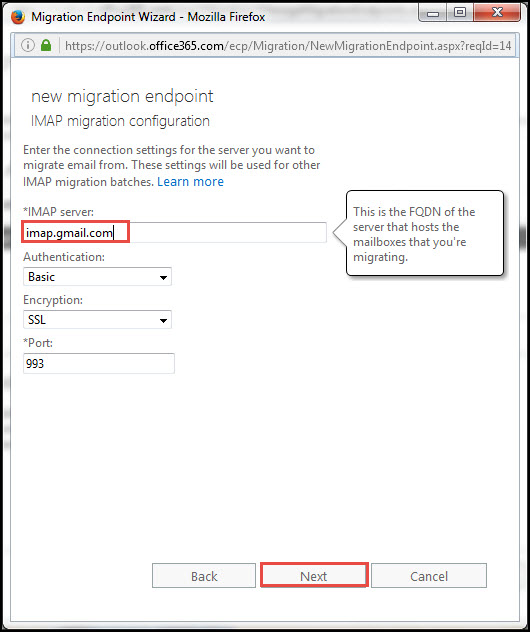
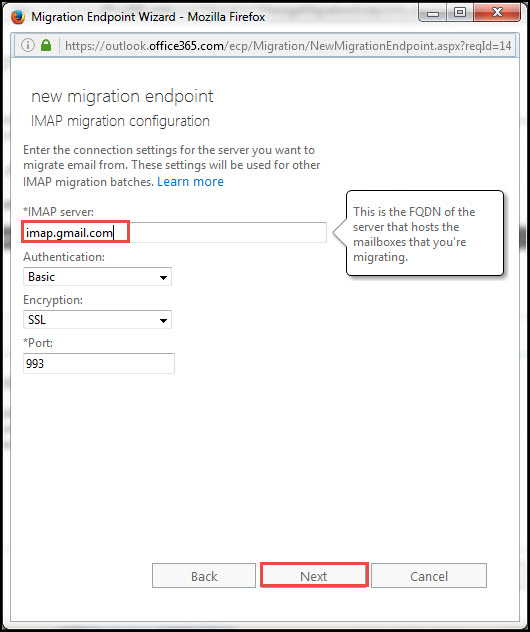
5. Next, enter imap.gmail.com in *imap server and click on Next button


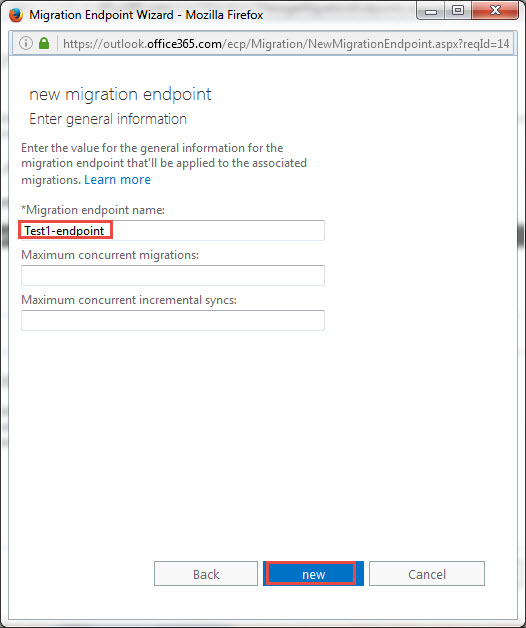
6. After that, enter Migration end-point name and leave other two field blank


7. In last, click on New to create migration end-point.

Step 4 - Import Gmail Emails to Office 365 Account

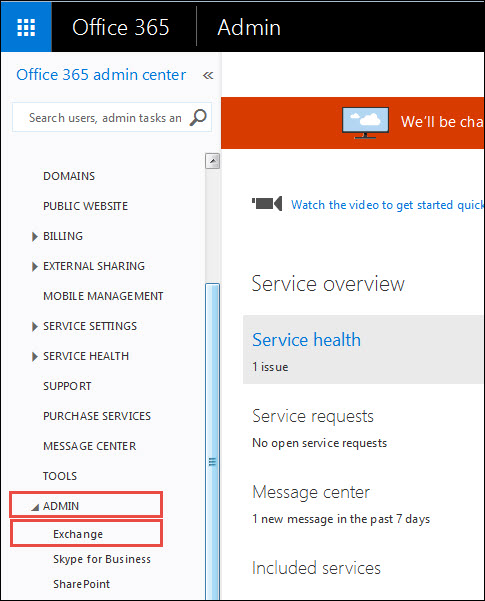
1. Open Office 365 Admin Center and click on Admin >> Exchange


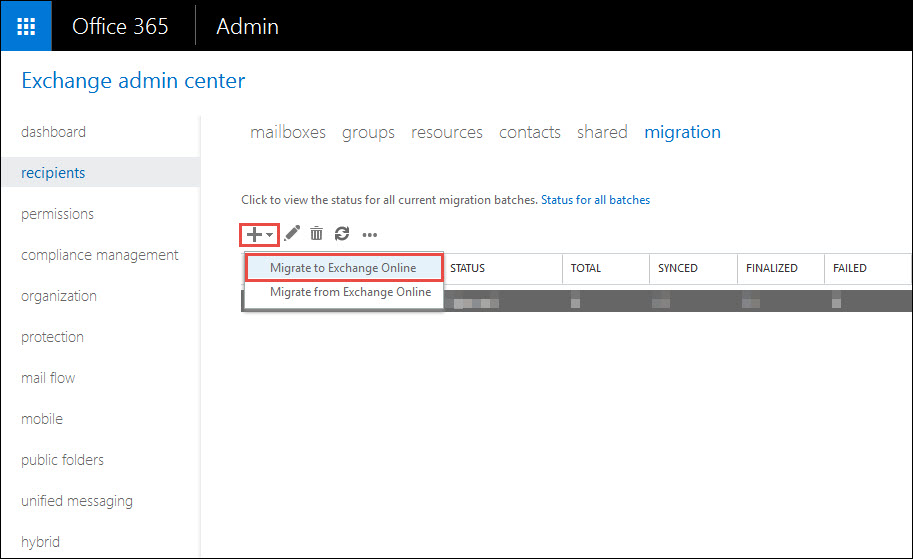
2. Now, click on Recipients >> Migration option

3. After that, click on + icon and choose Migrate to Exchange Online option


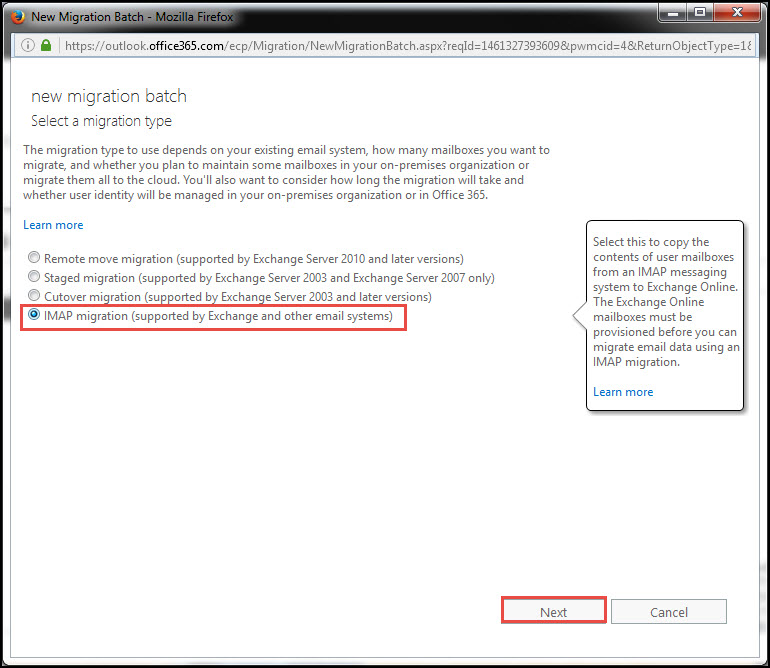
4. Then, choose IMAP migration and click on Next to continue


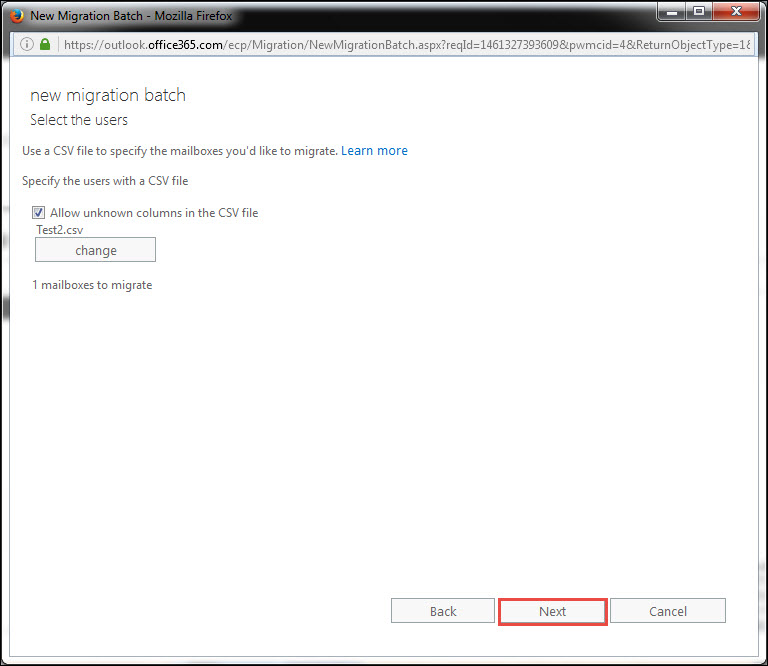
5. Check the Allow unknown column in CSV file checkbox and click on Browse button


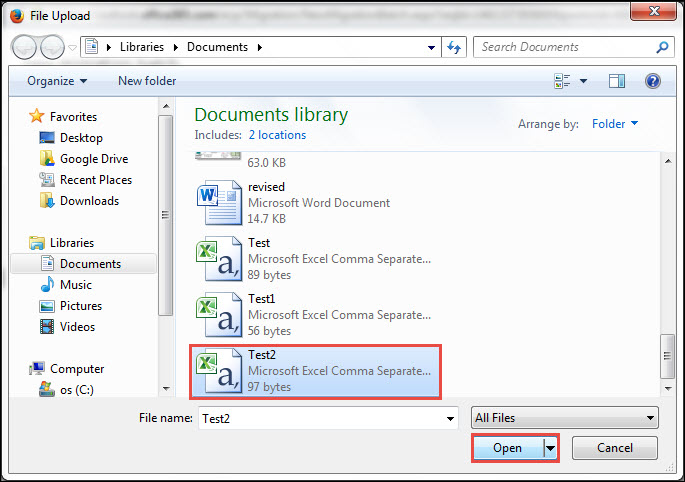
6. Now, select the CSV file that you have created in Step 2 above


7. After that, click on Open button to upload the file and then, click on Next to continue

8. Next, choose the migration endpoint on Set migration endpoint page that you have created in step 3 above and click Next

9. Now, enter imap.gmail.com in IMAP server field and leave other as default. Then, click on Next


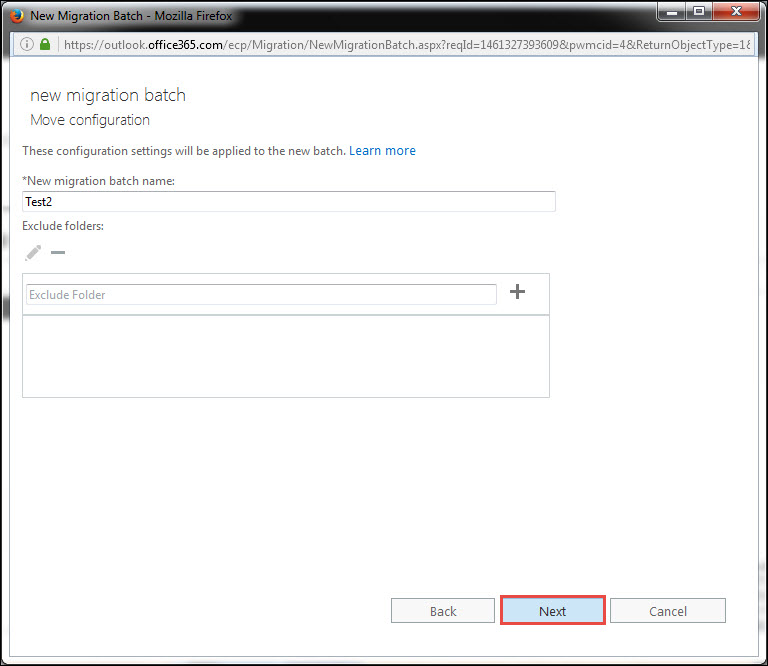
10. In the *New migration batch name text field mention the batch name for configuration settings


11. Finally, click on New button to finish the migration process

Step 5: Verify the Migration

After migrating emails from Gmail to Office 365, it is necessary to confirm the migration. To do the same, open Exchange Admin Center page and click on Recipients >> Migration option. Here, you need to verify the batch name displaying on migration dashboard. Moreover, if migration is completed then, Synced named is displayed on the status.

Why Manual Fails?

There are various limitations of manual procedure that a user might face while performing Gmail to Office 365 migration:

1. Manual is very lengthy, complex and tedious way of importing data from Gmail account to Office 365

2. It required lots of configurations before migration.

3. A user must be technically strong ton perform migration

4. There might be some loss of data when user import Gmail to Office 365 account

Alternative Solution to Migrate Emails from Gmail to Office 365

To overcome all the limitations that a user might encounter is with the help of two software to Gmail to Office 365. One is Gmail backup tool that will download Gmail emails to PST format. After that use Office 365 restore to upload PST file to Office 365 account.

Import Converted File to Office 365 Account

After extracting Gmail data in PST file format using Gmail Backup tool, it's time to move that file to Office 365 account. Now, to do the same without any trouble or expert help, go for a third-party tool i.e. Office 365 Restore. It moves all emails along with attachments and maintains meta properties also. Moreover, the software does not impose any file size limitation and offer an easy user interface.

Final Word

How to import Gmail Emails to Office 365 is one of the most popular searches. Thus, in this post, both manual and alternative solution to migrate emails from Gmail to Office 365 are discussed. While using manual solution it can possible that user might face some issue. Therefore, in order to have a foolproof solution, it suggested to go for an alternative solution discussed above.