Thursday, 9 March 2017

Import iCal to Office 365: Uploading iCalendar to Cloud

Do you need to import iCal to Office 365 account? In this blog, we will explore the manual methods to export iCalendar to Office 365 for uploading ICS File to Cloud.
ICS is a standard file format, which is used by numerous email clients to save calendar information such as tasks, events, journals, etc. It is supported by both desktop-based and web-based email applications. Nowadays, web-based applications are widely in demand because it can be accessed from anywhere and from any device. There is a cloud-based application developed by Microsoft i.e Office 365 which stores all the data of an email account on the cloud. So there is no possibility of data loss and it can be accessed from any device and at any time. This is the reason that many users want to import iCal to Office 365 account as O365 is one of the most popular cloud-based applications. It has many advanced security features as compare to any web-based email applications. Therefore, in this post, we are going to discuss the manual and automated solutions to transfer/ move iCal to Microsoft Office 365 account.

Monday, 6 February 2017

5 Ways to Archive/Backup Thunderbird Email Folder in Windows 7

The primary system generates a variety of data every day. This makes it necessary for the system resources to remain available at all times for the purpose. If the machine keeps generating as well as maintaining the existing data, there is a great chance of surfacing performance issues. Thus, approaches like archiving of data are important to maintain the balance. Emails being the first preference of users and Thunderbird being the user-friendly provider of the same, originates the need to know how to archive Thunderbird email. Today email data comparatively holds primary significance to any user than any of their system data. The reason being, all businesses are based on communication and all communication is based on email data. Interestingly, this communication is largely based on the usage of desktop mail clients, owing to the data control and security they offer over webmail services. This blog elaborates on how to archive Thunderbird email folders to ensure business continuity with enhanced performance. Moreover, the final segment puts light on the benefits that an organization accomplishes out of archiving their data especially for emails.

Archive Thunderbird Mailbox without Software

Archiving is a process that benefits organizations more than home based users. Especially when emails are archived, then it is generally a necessity for organizations, because of the bulk of emails exchanged on a regular basis that leaves no space for new email storage.

Here is how you can use Thunderbird archive options to accomplish the benefits of maintaining data without performance issues and in a cost effective manner.

Method 1: The First method is to use the default Thunderbird auto archive Mailbox option featured by Thunderbird to save its emails in a separate storage to avoid filling up of the primary storage to archive Thunderbird Email:
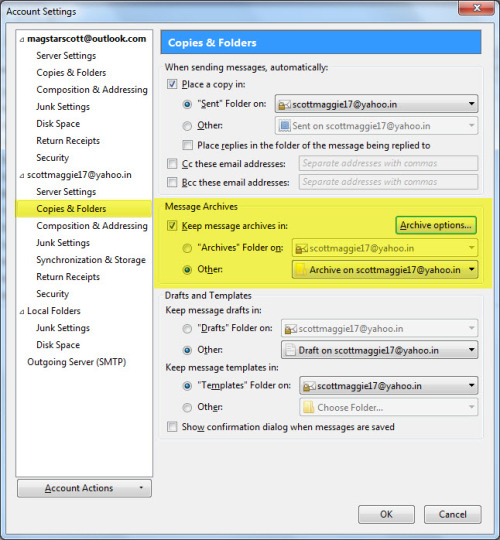

Right click on the respective profile and select Settings. On the Account Settings window, locate the ‘Copies & Folders’ option for the profile to be archived.

Click on Archive Options to explore more & Archive Thunderbird Email
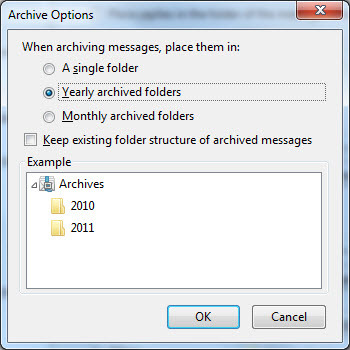

On the Archive Options window, you can select how to maintain them: Single Folder, Yearly archived folders, or Monthly archived folders to archive Thunderbird Mailbox. (Optional: Keep existing folder structure of archived messages).
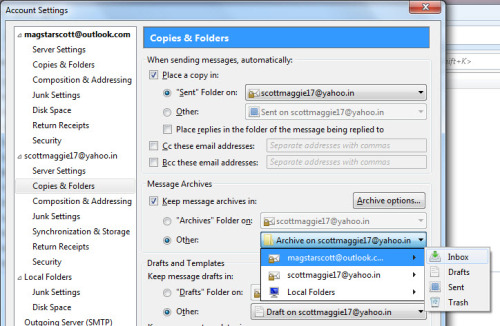

In the Message Archives section, you can choose where to keep the message archives as ‘Archives’ folder on (Profile name) or Other (a chosen folder within the profile). This will help you enlighten about how to archive Thunderbird email as per your preference.

Method 2: As archiving is just a method to maintain old profile data separately, it is not necessary to carry it out only using the standard method.
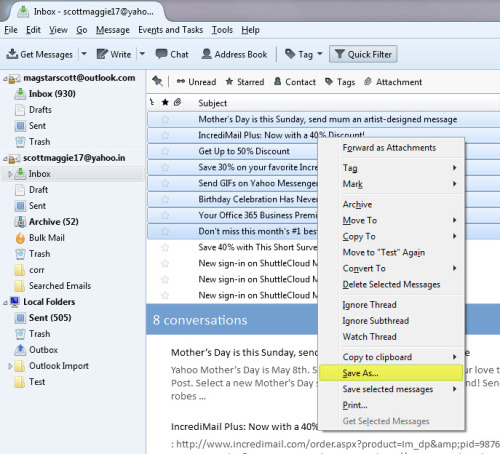

You can select the messages that need to be archived. Right click on any of the selected messages and choose ‘Save As’. This will save your emails as an EML file each at the folder path of your preference.

Method 3: Another way to understand how to archive IMAP email in Thunderbird is to use the ImportExportTools add-on.
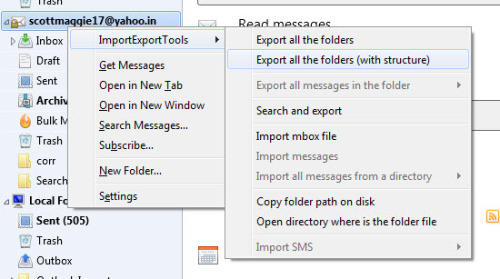

Right click on the preferred profile, hover over ImportExportTools (after installation and configuration) and select any of the two options to archive Thunderbird Email: Export all the folders or Export all the folders (with structure).

This will export a MBOX file representing each mail folder in the selected profile at a folder path that you specify. This will not only archive but also let you backup Thunderbird mailbox.

Method 4: Lastly, if you have to maintain archives as MBOX files only, then why generate them when they already exist.
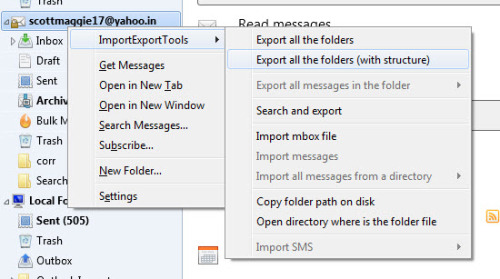

Right click on the preferred profile, hover cursor over ImportExportTools and select ‘Open directory where is the folder file’ to archive Thunderbird Mailbox.
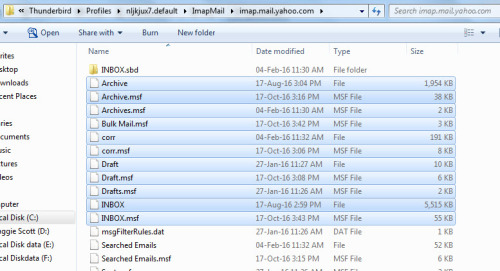

When the Thunderbird mail folder location is open, you can select whichever folder you need to archive. This way, you can archive Thunderbird email folders of your choice instead of all of them.

Why Take The Pain To Archive Thunderbird Anyway?

Anybody would want to grasp knowledge on how to archive Thunderbird email if only they knew the significance of maintaining data replica whether as a backup or in the form of archives. Following is an overview of the reasons that justify archiving corporate mailboxes:

1. Cost Reduction: When you store more data, you need more resources to maintain it and process it. More resources equal to more cost investment i.e. increased cost. Thus, when you manage extra data separately, you free up resources, which decreases the need to expand them.

2. Risk Reduction: The inability to restore lost data in the soonest possible time when needed is a risk, especially for business. No continuity means no business. It can be the failure to meet retention or the risk involved in the cost invested for recreating lost data. Having archives ensures that these risks are not encountered at all.

3. Data Reprocess: In most businesses, the data is maintained for compliance but it is not necessary for all. For some, data can be of great value too for the business. You could maintain old data for monetizing purpose by the method to archive Thunderbird Mailbox, for improving or maintaining an existing service, for better CRM, or advertising, etc.

Therefore, archiving has emerged as an extremely significant aspect of business continuity. Besides knowing how to backup Thunderbird emails to external hard drive, it is also necessary to maintain archives, because it is serving the same purpose. Your business gets continuity without compromising on the storage, resources, or the data itself.

How to Archive Thunderbird Email Automatically?

Methods of archiving are as many as you can discover because the sole purpose is to generate a copy that remains unaffected by the actions performed on the original data. Therefore, all the discussed methods are good to go, considering your requirements and convenience. Moreover, an automated procedure would only be of using a third party application that does the same without needing you to put in extra efforts from your end. Though using a commercial solution is the best thing to do if you want instant and accurate results to backup & archive Thunderbird Email you can migrate MBOX to Outlook. However, if an investment is a barrier then going with the suggested methods is not bad either. However, some other benefits that come along with a third party solution are that they offer a freeware trial before investment, lets you customize your options, generates quick output, ensures guaranteed solution, and moreover, saves your time and efforts in the process.

Saturday, 15 October 2016

Simple Solution to Crop your Oversized OST

OST files are also known as Offline Folder File. It contains all the information & data of the Exchange mailbox. It is the local copy of the mailbox data of the Exchange Server. We can access and store the information in offline mode with the help of OST file. There are several failures that results in OST file corruption, they are as follows:

1. Data storage devices.

2. Network connection failure.

3. Sudden power failure.

4. Improper maintenance of files in the OST file.


Overview to Reduce OST File Size

1. All these circumstances leads to the abruptly shut down of Microsoft Outlook when connected to Exchange server which may corrupt OST file. OST file size may increase due to frequent receiving of bulk mails in the Outlook mailbox.

2. The limitation of OST file size is 50 GB in case of UNICODE and 2 GB in ANSI format. So if standard file size exceeds to the threshold memory limit & the OST file gets oversized, then this may result as as cardinal reason for the PST file corruption.

3. It can be observed that while deleting the OST file, the volume of the file size doesn’t get reduced with respect to the size of deleted file. So if this situation occurs with Exchange server, OST Recovery is the only solution to repair those corrupt files.

Precautionary Steps

There are some precautions that needs to be taken to avoid corruptions in OST file:

1. Regular maintenance of the OST file.

2. Over sizing of the OST file should be avoided.

3. Regular back up of the OST file.

Most of the users forget to take precautions and let their OST file to exceed above the maximum capacity. There is not any automated tool provided by Microsoft that warns the users to cross the maximum capacity. But we can use the Microsoft free utility “Scanost.exe” to repair those corrupted OST.

How to reduce the file size of the OST file?

It is very important to maintain and manage the file size of the OST file for the proper functionality of the mailbox. We can reduce the file size of the OST file and increase the performance of the Microsoft Outlook.

1. Clear the archived files that are formed as a log.

2. Delete the unwanted and unnecessary emails from the folders.

3. Use Compact Now, it is a free utility provided by Microsoft to compress the OST files.

4. The file size of the OST file increases significantly while syncing the public folder favourites. It can be avoided by using cached Exchange Mode.

5. Auto Archive mailbox items to manage the mailbox.

Steps to Crop OST files Manually

Delete the unwanted files from the mailbox. It is applicable in all the versions of Microsoft Outlook.

Applicable to Microsoft Outlook 2007

1. Now go to Tools menu.

2. Click on Account Settings.

3. Select on Microsoft Exchange Server from the list and click on Change.

4. Click on More Settings.

5. Click on Offline Folder File Setting located on the Advanced tab.

6. Click on Compact Now.

For Microsoft Outlook 2003 and previous versions

1. Go to Tools menu.

2. Select the E-Mail Accounts.

3. Click on View or change the existing e-mail account.

4. Click on Next.

5. elect the Microsoft Exchange Server & then change.

6. Click on More Settings.

7. Click on Offline Folder File Setting located on the Advanced tab.

8. Click on Compact Now.

9. Click on OK when the operation is performed.

10. Click on Next and then Finish to complete the action.

For Microsoft Outlook 2010 and later versions

1. Click on File menu.

2. Select the Info tab.

3. Go to Account Settings, again click on the Account Setting option located in it.

4. Select the Microsoft Exchange Server from the list and click on Change.

5. Select More Settings.

6. Select the Offline Folder file Settings in the Advanced tab.

7. Click on Compact Now.

Alternate Solutions to crop the OST file

1. Recreating the OST file: It can be used as an alternate options instead of compacting the OST files.

2. Sync Filters: Synchronization filters enables the selected files to store in the OST file.

3. Sync Slider: This option can be used to cache only the recent items instead of complete mailbox.

4. Disable Share Folder or mail cache.

5. Remove Public Folder favourites.

6. Remove duplication created by Gmail.

Conclusion

There are many factors affecting OST file to corrupt. Some of them includes: viruses, phishing, malware, etc. Several precautionary measures can be taken to protect the OST files from corruption. So it is not easy to manage & recover corrupted OST file. So if you want to retain all the important data without affecting and truncating any of them, then a third party software i.e OST Recovery Tool can be helpful in such situation. One of the known software review websites like One Stop Blog has also recommended OST Recovery Tool for the retrieval of lost OST Data after deletion or file Corruption. It acts as an OST crop tool and split the OST file when it is larger than it’s file size.


Friday, 14 October 2016

Connect Zarafa to Outlook & Perform Zarafa to PST Migration

Zarafa is an open source application for Linux server that can be used by multiple professionals for their email managements. It provides its own Web-based e-mail client which includes the multiple utilities such as e-mail, calendar, and contact and task management. It has to store the entire content online which is available on server side using MySQL database. Zarafa server that stores the data items in its native file extension i.e, .ibadata and .frm. It has supported multiple number of email clients like MS Outlook, Web access via Firefox and smart phones etc. Users allows to store and manage their contacts on Zarafa mail server through these client programs.

Zarafa has a complete bundle of features such as emails, my calendar, video conferencing, audio conferencing, chat & presentation sharing with colleagues. Zarafa has one more advanced feature i.e. File management for accessing the files & documents and it can be shared with colleagues from anywhere. If a user have an internet connection for accessing the documents and files that has stored on Zarafa mail server.

However, Zarafa was designed to integrate with Microsoft Outlook which has supposed to be used as an alternative to MS Exchange Server for Linux users. It has been provided to access an email and other related services through web access. Sometimes, users upgrade to migrate Zarafa based data items into some commonly used file format to widen the range of accessibility. Microsoft Outlook is the best alternative for Zarafa users, most of them switch from Zarafa to Outlook because of it helps to store emails, calendars & contacts data items in an offline folder. In the following section, we will discuss on the scenario which leads user to Zarafa to PST migration. Also, gives a manual approach to export Zarafa to PST.

Reasons to Connect Zarafa to Outlook

Due to various reasons or issues, many Zarafa users prefer to export the data files from Zarafa to PST file in Outlook. Some of the major reasons that necessitates users to switch to another email application are mentioned below:

1. Support Windows Platform: Zarafa Server can be accessed through Linux Operating system. It helps to migrate the data items into Outlook PST file that makes it ease or convenient for users so they can access the files on Windows application.
2. Data accessibility Online: As Zarafa permits Web access, thus the data files can always be accessed online. However, Outlook PST files that are present at local location that allows users to access the files in offline mode.
3. Supports in Adverse Condition: It is beneficial to connect Zarafa to Outlook PST while in case breakdown of Zarafa mail storgae. Outlook files can easily accessed independently with Exchange Server for the interval.

Manual Ways to Zarafa to PST Migration

After observing various shortcomings of Zarafa files, many users search for a reliable and efficient solution Outlook PST files. The best manual approach is to migrate data without any kind of data lose. It performs the conversion in following steps:

A. Installing the Outlook Client

1. To install Zarafa mailbox
2. Now, assure Zarafa free Outlook is configure as email application by default as Control Panel >> Internet >> Applications.
3. After this, place the Zarafa CD in specific drive and wait for starting the CD automatically and then, select the uppermost tab as Windows Client.
4. In case, if the users got the client from another source, Now, enter the file name zarafaclient.msi with clicking twice.


B. Instructions for Outlook 2003

For Outlook 2003 and XP, Creating a new mail profile. The following steps are occurred as:

1. Now, go to option Control Panel >> Mail >> Show profiles.
2. Enter Add and fill the text box. Press OK on Zarafa.

For combining the Zarafa mail filters to this profile the steps are:

1. First, create new account and then, click on Next option which shows after adding the mail profile.
2. Go to last option and select option Next >> choose >> Zarafa 6 Server and then, click on Next tab.
3. Now, enter the server host name in the field. Optionally, users can select HTTPS connections which are available.
4. After that, fill the login and password details of user.
5. Now, there are 3 possible connections choose them according to users need those are Online, cached Zarafa mode and Detect at Startup.
6. For closing the Window, choose OK.

C. Create new profile for Outlook 2007

1. Turn to Control Panel >> Mail >> Show Profiles.
2. Go to Add option and enter the title in box. Press, OK button.
3. Now, choose the option to configure Server settings manually and Select Next option.
4. Again, Choose Zarafa mail Server and then, press on Next.
5. Fill the address in Server field. Optionally, users can choose HTTPS connections if available.
6. Enter the required details i.e. user name and password.
7. Press OKbutton. After this, users can store personal or public folders in Outlook after combining the Server.
8. For finalizing the profile, click on Finish option.

Conclusion

This article has been written to help out Zarafa users who attempt to transfer the data from Zarafa to Outlook PST files. We have tried to cover multiple reasons associated with Zarafa to PST migration. The manual procedure has been explained so that the users can clearly understand “How to connect Zarafa to Outlook.”

Wednesday, 3 August 2016

Import Exchange EDB to Office 365 - Quick Migration Guide

Exchange EDB file

EDB file is Exchange database files which was designed on single client-server architecture. These files contain rich text data, which is stored in Exchange Server. Components that an EDB file contains are email, Contacts, calendar, and attachments. These files are the acronyms for Exchange Database. EDB files are formatted using b-tree structure. Each EDB file has a corresponding STM file, which consists of the actual SMTP message.

Office 365

Office 365 is a Subscription based service, which provides multiple services and software to the users. Office 365 is a brand name of Microsoft. It is based on cloud technology, which means you can access, store and view computer related data and services from anywhere using any platform Mac or Microsoft. Office 365 also provides cloud storage services.

Need to Import EDB to Office 365

“I am trying to migrate from Exchange on-premise to Exchange Online, but I want to access our old Exchange database to our new Exchange online platform. I did not find the direct option to import EDB to Office 365 my new platform. Whenever I try to import, it is saying that the file is unrecognized & cannot import it to your Exchange online account. I am afraid of trying to import it again & again as it may corrupt the existing Exchange EDB file.”

Note-> Now when there is a need to import EDB to Office 365, the question is how to import? Is it possible to transfer EDB to Office 365 directly. Therefore, the answer to all the questions is “YES” EDB file can be migrated to Office 365, with the help of third party utility.
We first Convert Exchange EDB to Outlook and then migrate this Outlook PST file to Office 365

Discussing How To Import Exchange EDB to Office 365

As stated already, importing EDB to Office 365 directly is very tedious and time-consuming so we are exporting EDB file to PST first then in another section we will discuss importing PST file to Office 365.

Steps to Import EDB to Outlook Data File

Refer the following steps to know how to convert EDB to PST:

1. Launch the software EDB to PST converter. In addition, follow the steps accordingly. First add the file by browsing it from its location.


2. Click on Open given below to add the EDB file and start the process. It will show you a scanning screen. As scanning is done click Ok


3. When the selected EDB file are added to the software then go to Export tab, select the folder that you want to Export to PST format, select the destination location by clicking browse and then click Export.


4. The software will start the convert EDB to PST. As the process is done, click Ok.


5. Now, you can save the imported data report for further usage. Verify the outcome in Outlook.


Note-> In the above section I have exported EDB file to PST. Now in the next section I will discuss how I Migrate Outlook to Office 365 using simple steps.

Steps to Migrate PST to Office 365


Now let us discuss how we can transfer PST to Office 365:
1. Download & launch the software. In the login Window, enter your Office 365 credentials and click on Sign in.


2. Then I choose the option 'Office 365 Restore' to upload data from PST file to Office 365 Cloud and then click 'Next'.


3. Now I Select Category, Folder Hierarchy & Date Filter options. Choose the options as per my requirement.


4. I received a Completion message when PST was migrated to Office 365.


5. To verify if the PST file is migrated successfully, I log in to my Office 365 Outlook account.


Conclusion

In this blog, we discussed EDB file & Office 365, the need to import EDB to Office 365 & the ways to migrate your EDB file to Office 365.This blog is designed to help users with the types of errors I face while working on Exchange EDB files and how using a third-party utility can resolve their issues as I resolved mine. In addition, steps to export EDB file extension to PST and then migrate this PST file to Office 365 is discussed because importing EDB to Office 365 directly is a lengthy process to follow.

Tuesday, 2 August 2016

Export Mailbox From Dismounted Exchange Database Using Best Method

Need to Dismount Exchange Database and Export Mailbox

There are times when it has required to dismount database. The reasons can be when you
replace hardware/software component
- Create offline backup
- Fix sever related issue
These are the various situations when you required to dismount the database.

“I have a dismounted Data Base on Exchange Server 2010 SP1 server and now I cannot get the Database Mounted again. I Installed new Exchange Server as:
2 HUB/CAS Server
2 mailbox Server
so I am facing problem in moving the Mailboxes from the dismounted Database to new server”


How to Mount Exchange Database on Server

You can mount your exchange mailbox database on server with the help of two methods by
1. Using PowerShell Command
2. Using exchange admin centre

#1. PowerShell command to mount Exchange Database on Server

To mount the Database on the Server that has mailbox server role installed on it you can use “Mount Database” cmdlet.

Mount-Database-identity [-AcceptDataLoss][-Confirm[]][-DomainController][-Force][-WhatIf[]]

This command can only be used when the following conditions are satisfied
1. Exchange IS service is running
2. Exchange Replication service is running

#2. Using Exchange Admin Center

To manage Exchange 2013 database you can use this GUI medium. What you need to do is first login to exchange Admin Center (EAC) for which you would be required internal and external URL. Check by running the New-EcpVirtualDirectory command in Exchange Management Shell

Get-ECPVirtualDirectory |Format-List Name, Internal|URL,ExternalURL

1. Once you login to EAC, click on “Servers” in the feature pane and click on “Databases” tab
2. Now select the database that want to be mounted on Server and then click on “More” button in the toolbar.
3. Click on “Mount” option and wait for a while to let the application mount the database.

You can use any of the following methods to mount the database on the server. However there are times that error “unable to mount database” can restrict smooth mounting. In such situations you can adopt a solution and convert your mailbox from Exchange to Outlook and then try to mount them on server.

Advantage of Using the Export Request:-

The PST file can be shared or saved on the shared network from where it can be accessed by the exchange server.
There is a provision to extract the mailboxes into PST file and access the mailboxes simultaneously at times.

Note

When you are exporting mailbox it must be less than 50 Gb in size. Because the maximum PST file size limit that Outlook supports is 50 GB. And if the file size is large in size then multiple PST files can be created for every folder in a mailbox.

Common Reason To Move Mailbox to PST

- For Compliance Purpose.
- For creating Point-In time snapshot
- For creating an archive of the Mailbox

Tech Talks


1. The database is dismount and I just have 17 GB free

Ans. If the database is dismounting on its own and you have 17GB free space, then I would like to recommend you to create a new mailbox database on a separate set of disks and move the users there.

2. My database is dismounted and I am getting alerts regarding that. What to do?

Ans. What you can do is take a backup of the database and keep the backup or you can export the mailbox in database as PST file.

3. I have third party program, the program reads the EDB file and export the information but when I scanned the dismounted database, the email server stop sending and receiving.


Ans. As already discussed, use an Exchange aware backup platform to back up your database. And then use the third party tool along with the backup software to export any information.

Conclusion:


Export Mailbox from Dismounted Exchange Database blog is aimed to help users when they dismount database and trying to mount it back. And How they can use the PowerShell command to mount the database. Scenarios where database is dismounted and need to export mailboxes to PST then surely a third party application should be adopted.

Note-> The EDB to PST Converter software can run without Exchange Server Environment.

Monday, 18 July 2016

Import DBX to Thunderbird - Steps to Migrate from Outlook Express


DBX is an Outlook Express database file, which is associated with email folders that stores email messages of a respective profile. Import DBX to Thunderbird requires to import DBX file into Windows Live Mail first by selecting file import->message->Microsoft Outlook-Express 6 and locate it to proper DBX folder and then Import this file into Thunderbird.

MBOX is a Thunderbird file format and used for holding collections of email messages. All messages in MBOX are concatenated and stored as a plain text in a single file.

Errors With Outlook Express DBX File


Here the next section will discuss how we can Import DBX file to another mail client, for a better and efficient performance.

Importing DBX to Thunderbird


Importing DBX to Thunderbird directly is not convenient and quite tedious task. However, there are multiple tools available in market using them we can easily Import DBX file. So here, I am discussing a tool to convert DBX file to PST and then Import this PST file in Thunderbird.

Steps to Import DBX file Using DBX to PST Converter


1. Launch the software, browse the DBX file or folder and then click ADD
2. Add the DBX file the software will start scanning and generate a preview of each in various styles
3. Go to Export, select the type as PST, Browse the destination and then click Export
4. Once the export process is done click on Ok to finish
5. Now, Open Outlook and go to file, Open & Export and click Outlook data file
6. Browse the Outlook data file, select it and click open to open the mailbox contents of MS Outlook

The Outlook Express DBX file is converted to Outlook PST. Now we will discuss how to import this PST file into Thunderbird in this section.

Steps to Import PST to Thunderbird

1. Launch the software, click on the Open tab to initiate the process
2. Now, click on Browse to select the PST file to import to Outlook.
3. Now, select the path of the PST file to be imported then click Open
4. As you selected the path, click the next Browse Button to select the destination path and then click ok. Click on Export
5. As, the Import process is done click Ok
6. Now, navigate to the location where you saved your converted PST file in MBOX format

Conclusion

This blog is aims to help users and provide them with a solution to Import DBX to Thunderbird, as converting DBX file directly to MBOX is a process quite lengthy and tedious. So here, we discussed steps to Convert DBX file to PST and how can we import this PST file to Thunderbird.