Tuesday, 19 January 2016

Export Eudora to Outlook Completely In Simplest Steps


Eudora is an application that is supported by both Apple Mail and Windows, but is not continued in usage due to end of support. It stores data in .mbx format. The messages data store is an all ASCII text based file. In Eudora, attachments are directly accessible and can be moved or copied. Eudora supports the POP3, IMAP, SMTP protocols. Apple Mail Eudora offered a webmail service at eudoramail.com. The client has power filters that run with the help of regular expression and conditional processing of incoming, outlook messages. Apple Mail Eudora has another nice feature called smart mailboxes; these are the virtual mailboxes that appear on the sidebar with other mailboxes. These mailboxes show messages that matches the rule for mailbox when selected.


NEED TO EXPORT EUDORA

These days Eudora users are facing many problems, as Eudora store each message in standard ASCII text with each message stored as a separate file. All the attachments are directly accessible in single file, which leads to data consolidation. Eudora no longer uses regular expression for data management. There is not even an Export in Eudora but only Import is available.

HOW TO EXPORT EUDORA TO OUTLOOK?

You cannot Export Eudora to Outlook directly as it only has an import function. Moreover, if you still try to export Eudora directly to Outlook a dialogue box will always appear showing mailbox folder could not be opened. So we Import Eudora into Outlook Express. There are two ways to Export Eudora.

1. Export using Manual Method
2. Export using third party tool

Using Manual Method

Note → The following procedure is performed using Eudora for Windows with Outlook Express in co-existence.

Steps to Import Eudora to Outlook Express 

1. Open Outlook Express

2. Go to File Menu and Choose Import-> Messages

3. Select Eudora version in use and then click Next.

4. Browse to the location of your Eudora data.

5. Select the location and then Click Next.

6. Select All Folders or choose specific folders to import to Outlook Express and then Click Next.

7. Click Finish.

Issues with Outlook Express

1. All the attachments on sent messages will not be included.

2. The Vista replacement for Outlook Express does not include Eudora Importers.

3. This folder does not work well with nested folders in Eudora.

NOTE-> Now again there is need to export from Outlook Express to some other mail client where you can easily access your data files. To do so, we export data from Outlook Express to Outlook.

Steps to Export Outlook Express to Outlook

1. Open Outlook

2. Go to File Menu and Choose Import and Export.

3. Select Import Internet Mail and Addresses.

4. Then click Next.

5. Select Outlook Express 4.x, 5.x, 6.x

6. Check import mail correctly.

7. Import Address Book

8. Click Ok.

Using Third Party Tool

There is a third party tool available for exporting Eudora to Outlook. Now in this section we will discuss how to use a tool to Export Eudora to Outlook.

Steps to use third party tool

1. Launch the tool Eudora to Outlook Converter.


2. Now Copy the Eudora Mailbox to Windows.


3. Now you can select single file or complete folder to Export to Outlook and then select the destination type in which you want to export Eudora mail and then click Export.


4. After completion, a message will appear showing Eudora to Outlook Conversion Completed Successfully. Click Ok


5. A report will be generated after the process is completed.


6. Now, you can easily access you Eudora mailbox in Outlook.


Conclusion

This blog is aimed to help users be aware of ways for exporting Eudora Mail to Outlook. One cannot directly export mail from Eudora to Outlook as Outlook supports PST file format. So to perform this transfer first you need to import Eudora to Outlook Express and then export the data from there to Outlook to make it accessible in PST format.

Tuesday, 8 December 2015

Remove Lotus Notes Duplicate Items

Lotus Notes is an email client, which is used for business purposes mainly for the track, record & the activity of the employees. It was built by IBM and is based on client-server technology. Formerly it was recognized by the name of IBM Notes, it uses Lotus Domino as its email server. It serves as a good option over other email clients which supports the various versions of it. The files are created in Lotus Notes are in NSF format which contains separate contacts list, emails, calendars, events etc., information.

Saturday, 21 November 2015

Solution for RRV Bucket Corruption Error in Lotus Notes

RRV bucket is an error in Lotus Notes that occurs when the .nsf file is corrupted due to specific reasons. Lotus Notes email client is a proprietary of IBM. It is an email client used by enterprises for storing data on Database.
The Record Relocation Vector (RRV) is a table that points to the notes within the database. An RRV bucket contains information to locate the data for specific notes or object identifiers within a database.
RRV points to the Lotus Notes Database and tells Notes where to find a specific Note ID.

Friday, 6 November 2015

Convert Outlook Offline File to PST

Outlook offline files cannot be converted directly to PST since they require a connection with the Exchange Server to be accessed. The scenario of conversion is mostly needed when a user needs to take away their mailbox with them on leaving the current employment.

The Need to Convert Outlook Offline File to PST

Employees more often delete their account from Exchange Server or take with them the Outlook offline file of the respective mailbox to convert Outlook offline file to PST for its independent usage. However, the conversion requires linking up with Exchange Server to open the same account.

In that scenario, there is no link to connect with the Exchange Server or the restore point is not created. Nevertheless, there are some tricks as well which can serve the purpose in some cases but are limited.

Saturday, 31 October 2015

How to Export MBOX File of Thunderbird to Lotus Notes?

Mozilla Thunderbird is an open source email client, which gives users the option for customization and is preferred by small-scale enterprise and home users mostly.


What is the Reason to Convert MBOX to NSF?

As MBOX file format is used by many email clients like; AppleMail, PocoMail, Netscape, Thunderbird, etc. There is a need to convert it to Lotus Notes if the users prefer to use their personal mailbox data on Lotus Notes. This scenario generally occurs when an employee or user undergoes an organizational switch as every firm uses different email clients as per their policy.

How to Achieve Transfer of all Emails from Thunderbird to Lotus Notes?

To import the mailbox from Thunderbird to NSF format, a third party tool can serve the purpose by providing error free conversion without consuming more time.
However, it is always recommended to back up your data so that it can be retrieved easily by using a software program.

How to Convert MBOX to NSF?

A good software utility can make the conversion a bit easier. However, it is preferred to use the tool step by step.
1.Locate the imported file in the drive.
2.Drag and drop or use the browse option to add the file in the software.
3.Then create a New Project in the software window.
4.See the preview of the imported file in the software tool, which provides useful information of the converted file.

While considering a software utility for conversion, check for these points which could be beneficial to you.

File Size Limit - Check the file size limit of the conversion from MBOX to NSF. It is a crucial point, as the rate of conversion depends on the size of data being converted.

Splitting The File - Check whether it can split the MBOX file according to the requirement. The splitting option of the converted file gives users the option to segregate emails having different folder from a pool of data. There are situations in the enterprise when all the data of the employees are embedded in a mega MBOX file, so in that case splitting option proves to be a boon.

Search and Extract –  Sometimes it becomes difficult to locate the file in the drive, in that case a search and extract feature can be a time saver for the user as it becomes cumbersome to find the file in case if the user don’t know the location.

Compatibility with Operating System- Check the compatibility of the software with the platform on which it has to be operated. It is very important whether the software provides update regarding support to a certain OS in future, which can provide new features along with some bug fixations or stability.

Support for Email Clients - How many email clients does the software utility supports. Since there are many email clients that uses MBOX file format, hence it should be checked thoroughly by the user whether the software utility supports his/her email client.

Data Integrity And Error Free – The integrity of the output file should be the utmost requirement of any user. Thus, the data should not suffer from any loss during the conversion and is conducted in an error free manner.

Handing of Corrupted File And Providing Security –The software utility should be such that is can handle the corrupted or virus infected files as well. Since the attack from any viruses, malware, Trojans, etc., can infect the file or corrupt it.

I hope that the above article helps the users to understand few points before going from MBOX to NSF conversion and helps in choosing the best software to convert MBOX file to Lotus Notes NSF file utility for it.

For any query or suggestions, do mention in the comment section.

Wednesday, 28 October 2015

How To Convert MBOX to PST for Free

Want to convert MBOX items into PST format? No matter if you have access to Outlook or not, find free MBOX file to PST conversion methods here.

MBOX files are the topmost versatile email repository. The market is familiar to a wide number of email storage files that have ever been increasing. However, MBOX is slightly different from most of them. The file is a collection of messages in plain text format. Each message contained within the MBOX file is stringed to the other at its end. Every MBOX file format represents an email folder, i.e. a collection of messages from the origin email program.


These files are generated by not one, but a variety of open source desktop mail applications. This includes; Thunderbird, Entourage, Spicebird, and many other such 3rd party applications programmed for desktop-based emailing purposes. This segment explains the requirement, advantage, and uses of the tool like MBOX file to PST converter for translating MBOX.


Scenarios of MBOX File Conversion to PST

There are a couple of scenarios that users find themselves in when trying to convert MBOX file items into PST. These scenarios are related to the availability of Microsoft Outlook for the conversion process. While for some users, Outlook and other email clients are present on the system, while others require a solution that does not need email client installation. In the next section, we will discuss the steps to perform free MBOX file to PST conversion either with Outlook or without it.


I. With Outlook
II. Without Outlook installation

Ist Case: Convert MBOX Items Into PST With Outlook

If Microsoft Outlook installation and configuration is possible, then users can easily set up a new account and use it for conversion. Another email client that supports MBOX (such as Thunderbird, Eudora, Apple Mail) is necessary to convert MBOX emails to PST successfully.


Free Manual for MBOX to PST File Conversion

1. Start Mozilla Thunderbird and access the MBOX file in it. Use ImportExportTools add-on for this process.

2. Configure a new Gmail account in Thunderbird. Enter the name, email address and password at the designated boxes and enable IMAP option.

Note: Make sure to enable the IMAP authentication option in Gmail settings first.

3. Right-click on the Gmail mailbox and create a new folder with desired name.

4. Open the MBOX mailbox and select all the emails to move into PST file.

5. Either drag and drop messages into the new folder or move them using the free manual method.

6. Wait for Thunderbird to synchronize the data. Now, run Microsoft Outlook and configure the same Gmail account in it.

7. Open the New folder containing all the MBOX emails to convert to PST file. Move these files into any location within Outlook.

8. Now, go to File and select Open & ExportImport/Export.

9. Select Export to a file and hit Next.

10. Choose Outlook data file option and hit Next.

11. Select the new folder to convert to PST file and hit Next.

12. Input the names of the destination and the PST file. Choose other options as per requirement and hit Finish.

13. Choose the password for the data file or skip this step. Open the destination location to get the PST files.

Note: For this process, both Mozilla Thunderbird and MS Outlook must be installed and configured with Gmail account. The process will be time-consuming and is only recommended for those users who can afford losing some email attributes, formatting and other properties.

IInd Case: MBOX File to PST Conversion Without Outlook

If users cannot access the Microsoft Outlook email client then, no manual method can open MBOX in Outlook. The reason being no such method exists at all. A mediator is necessary for any sort of file conversion, be it in the form of email clients, external applications, or third-party solutions.

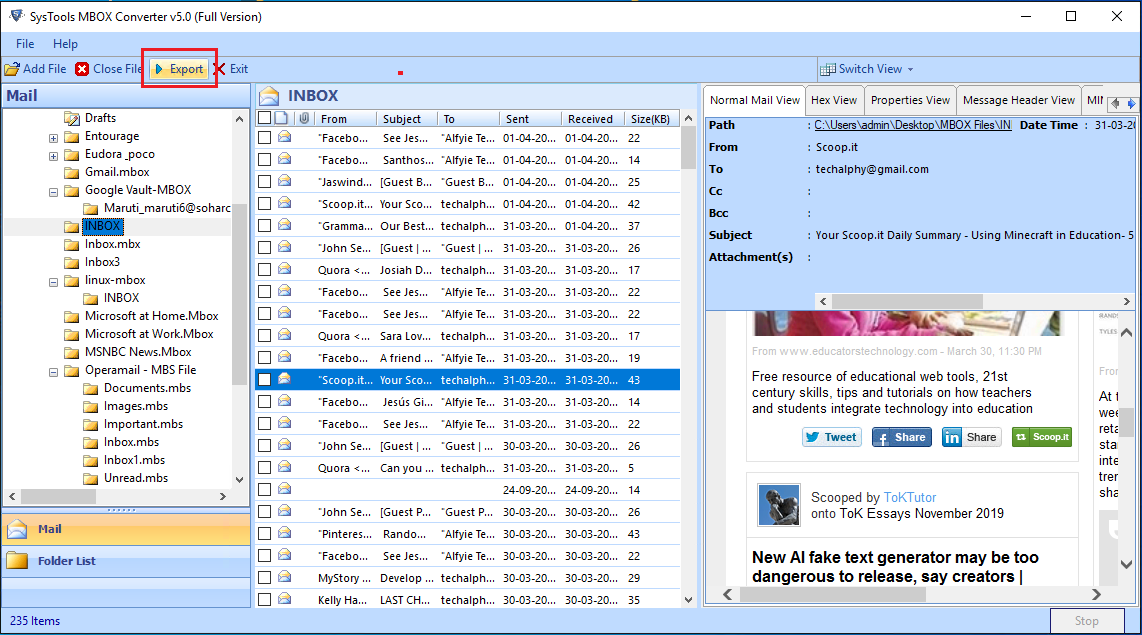
So, in order to export MBOX files into designated PST files, a user must opt for reliable software such as SysTools MBOX to PST converter. It does not require MS Outlook or any other email client for conversion. This software has a demo version to convert 25 items per folder for free into the preferred format. Moreover, it can automatically fetch mailbox items from 20 email clients, thus cutting off the average time required for scanning and overall conversion. With this software, users can enjoy PST files without losing formatting, email structure, or attributes.

  1. Launch MBOX file to PST Converter.
  2. Click on “Add File” menu option to open the MBOX selection window.
  3. Select MBOX files from the list and click on “Next” button.
  4. Here, choose “Use folder mode” to select the folder containing all MBOX files for conversion to PST.
  5. Wait for the software to scan the mailbox items. Then, click on any email to preview its content in different preview modes.
  6. For Selective Email Conversion, select all the emails using the checkbox and right-click to choose “Export” option. Alternatively, click on the Export menu button without selecting any checkbox.
  7. Choose between “Export All Folders” and “Export Selected Folders” as per preference. Click on “PST” format option from the list.
  8. Click “Split PST” and set the size to MB or GB. It will break the resultant PST files into multiple smaller PST. Users can also choose to skip this option.
  9. Now, set the location to save the converted MBOX files into PST using the “Change” button.
  10. Click on “Export” to start the file conversion process. In the end, the software displays a message confirming the process completion.
  11. Choose to view the report or directly open the converted file location. And find the new PST file at the location.
Note: The MBOX to PST converter tool also provides the option to merge all the MBOX files into a single PST file. Use “Folder mode” for this task. Else, the software converts MBOX files into corresponding PST files.

Need for Conversion Despite Open Accessibility

MBOX files are open to being accessed on or with any application that supports reading the file. However, there are cases where the accessibility might get troubled a bit considering the condition. Some of such circumstances and requirements have been discussed below:

  • Varied Application Support: Accessibility on a variety of applications is not just a benefit but also a drawback from the security point of view. The files can be accessed by any or all MBOX supportive applications. Higher the number of applications associated with the file, complicated becomes the procedure of accessing it. Some applications import MBOX files, while others detect it from the default store folder only.
  • Access Without Application: Being a simple text-based file makes MBOX readable using a text reader or editor. Notepad, for example, can read an MBOX file format directly without any trouble. However, the challenge is to read the corresponding attachments. Notepad cannot read or display attachments of any type whether text, document, or image-based. Therefore, not complete accessibility can be gained from the file. At this stage, the user needs MBOX file to PST converter to open a file without the need of an external server environment.

Outlook Data File Over Mailbox

Outlook Data files are Personal Storage Table files that consist of the entire account data of a particular user profile. The file is a proprietary of the Microsoft client thus, is not accessible by any other email program or importable on any too.

The file not only consists of email storage but also is a repository of other personal information managed by the user. The data file consists of data that includes; email folders, contact storage, calendar entries, journals, tasks, and more generated or exchanged by the user.

Therefore, for a collective representation of the MBOX file format contents conversion to PST file can be performed. Due to the lack of provision for MBOX to PST conversion, the data transfer can only take place using an external program.


Conducting The Conversion

As per the observation, the lack of procedures to make a direct and bulk data conversion from MBOX to PST, the accessibility of a third party program to be made. Therefore, MBOX to PST File Converter would be highly recommended as a suitable solution for performing the conversion of mailbox data to Outlook Data File format. The program is built to support the MBOX file format of varied platforms and convert them into more than just Outlook data file format.

Monday, 26 October 2015

Best Option To Convert From EDB To PST

Want to convert Exchange Server database to Outlook supported data file? There are many options to do the task along with the usage of an EDB to PST Converter. This article explains all about converting Exchange Server data to MS Outlook data file.

What is EDB & PST File Formats?

EDB is an Exchange database file format, which is used in most of the organizations all across the globe. Microsoft Exchange Server stores the mailbox in EDB format file.

While PST is a Personal Storage Table file format used by Microsoft Outlook to store individual user mailbox data. It is stored on the local drive of the user’s machine.

Why a Converter Is Needed?

A converter tool can easily solve the issue by which the file can become easy to work with by the change of file format and transition of data from EDB to PST. Any issue in the Exchange Server can cause damage to user’s mailbox.
An EDB to PST converter can be used under the following conditions:

To Reduce File Size - If the storage limit of the Exchange Server is within local storage then it is a good option to convert the data into PST format so it can be used by the user and can be saved on the local drive.
To Transfer The Data – When a data has to be accessed in Microsoft Outlook, then it must be converted to PST format.
To Change The Operating Platform - When the data of Exchange Server is shifted from Windows platform to Macintosh then it needs to be converted first to PST format and then further to MAC compatible Outlook program which supports importing a PST.

Why User Wants To Switch From EDB to PST?

Exchange Server Recovery - In the case of corrupted EDB files, PST is a suitable format to export the mailbox, which can be easily worked on.
Timely Maintenance Of Exchange - The Exchange Server needs timely maintenance for a proper functioning.
Secondary Data Backup - PST serves as the preferred option to back up the data of Exchange Server in case if the server is attacked by viruses, malware, Trojans or is affected by security breach.

What Are The Options To Convert EDB to PST?

The conversion from EDB to PST can be done manually or by using a third party tool.

Manual 

ExMerge Utility- It is a free utility developed by Microsoft used to convert corrupted EDB database to PST.
It can handle errors and other issues, which occur in Exchange server.
Can recover single as well as multiple mailboxes from Exchange Server and then save it to PST format.
It prevents recursive occurrence of emails in the output PST file.

Limitations 

It is a useful utility to convert Exchange Server mailboxes into PST. Nevertheless, it can only extract 1GB of data per hour from the Exchange mailbox.

EDB to PST Export Exchange PowerShell - It provides a command for exporting the mailbox of the Exchange Server to the user. It is a general command for transferring the mailbox of the Exchange Server to other or to a PST format.

Export Mailbox- This is the command used to export the mailbox into other mailbox or save it as a PST file. It exports all the mail folders, calendar, notes, tasks & contacts to the directory folder.

Limitations

There is a certain limitation for using the commands as they only support 2GB of file size.
Outlook 2003 with 32-bit along with Exchange Server or later versions support is provided.

Third Party Converters 

There are many third party converters for EDB to PST conversion available that can export the mailbox of the Exchange Server and save it as PST format for Outlook. These tools provide best option to convert EDB to PST along with features that serve in severe corruption cases that are unresolvable by manual means.

Limitation

The only limitation of this is that it can’t provide live support for the Exchange Server.

Conclusion

Exchange server database is very sensitive and important for an enterprise to work properly, hence its maintenance should be done properly in regular time interval. Third party software provides superiority over manual tricks in tackling errors or corrupt files of Exchange Server, but they can’t provide live migration of one mailbox to other. To convert other mailbox follow email conversion tip.

I hope that the above article helps users know the best option to convert EDB to PST.

If the above tips help you to solve the issue, do mention it in the comment. For any query or suggestions related to the article, feel free to ask.  J