Saturday, 19 March 2016

Upload PST to Office 365 Without Outlook - One Click PST Migration Tool

PST to an Exchange server administrator is similar to Public Folders. However, relatively PST is more difficult to tackle with when considering its individual users that do not work under the server environment. The vulnerability of PST files to mere yet majorly affecting conditions like re-imaging of a machine or hard drive failure causes a ripple of worry amongst its users. Data security can be hard to attain in the case of PST files when considered from an eDiscovery point of view. Therefore, this scenario to upload PST to Office 365 without Outlook gives rise to the question as to what can be done with a PST file to ensure its security and maintenance.

Following is a segment that focuses on the offering from PST to Office 365 migration tool as an answer to the discussed above concerns.

Steps to Upload PST to Office 365 Without Outlook


One can choose to import their locally stored PST files into the hosted Exchange mailboxes of Office 365. Read more to know how importing PST files on Office 365 helps:

1. The upload renders to the organizational needs by enabling:
  • Archive mailboxes for users to avail added storage on mailbox
  • Benefits of maintaining deleted items for longer duration with retention policy
  • Permanent loss of data file or its contents can be avoided with a copy online
  • High availability of data file with its access provided on cloud based platform

Ways To Move Outlook Data File on Office 365

The manual method to upload PST to Office 365 without Outlook doesn't go with any of the method to import Outlook PST to Office 365. Following are the method to upload PST file to Office 365.

Upload Via Network: In this case, you are required to upload files over a network to the storage of Microsoft Azure. Import service provided by Office 365 can then be used for copying the file to mailboxes.

Physically Ship Drive: In this case, the files need to be copied to a hard drive that is encrypted for protection from unauthorized access. The drive must then be physically shipped to Microsoft Corporation where the Datacenter department will process out the copy procedure as stated in the first procedure. Later you can import the data from Azure to your Office 365 mailboxes easily.

The steps that need to be carried out for carrying out the file upload procedure:

1. Download and install the utility named ‘Office365Import Tool’

  • When you try importing PST over network via uploading, Azure AzCopy tool download will be asked to perform
  • NOTE: Install the file in its default path predefined during the installation. When trying to encrypt PST before upload O365ImportTool.exe looks for AzCopy tool.


2. Avail the storage key and get the PST uploaded / imported on to the Azure storage using the upload URL acquired. Ensure the protected state of your file during this procedure.

3. Get the files moved to Office 365 using AzCopy tool. As an optional step, you can also download the Storage Explorer by Azure for viewing the PST files uploaded. The tool is a complete freeware utility.

4. Generate a CSV file specifying which file has to imported to which mailbox on Office 365.

5. Now create a job for PST Import within your Office 365 account. Submit the import-mapping file for PST in this step and once the job is created Import service will begin.

This is how the procedure is carried out to upload PST to Office 365 without Outlook with the help of  Office 365 PST import service provided officially by Microsoft for importing PST file to Office 365 account. However, the procedure being a manual one requires end user efforts to be put in whereas an Office 365 Upload PST tool can be beneficial for end user’s considering the convenience provided.

Wednesday, 16 March 2016

View PST Files Without MS Outlook - A Utility Which Ends Outlook Environment Dependency

Travelling without your lappy?

One of my clients has described his situation when he travels without his laptop what issue he has to face while accessing his own personal folder of emails.

Issue: View PST File without MS Outlook

This time I need to travel without my laptop in all the emails are stored in MS Outlook. You might be thinking I could access it from server also, but my mails automatically deleted after downloading from the server. I have stored my Outlook mailbox storage in a pen drive. The source file is in PST format. I need to open the PST file without MS Outlook through which I can read my Outlook mailbox with proper email formatting.

Suggested Solution: There are some viewers available for free of cost. These are the alternative solution to open your PST & read complete mailbox data like emails, attachments, contacts, calendars, journal, notes & task without MS Outlook. Following are some of the Outlook PST Reader:
  • • SysTools PST Viewer
  • • Freeviewer.org for PST file
I would suggest reading Outlook PST file with SysTools PST Viewer. Let me explain the steps as easy as 1,2,3 ;)


Steps to Read Outlook Mailbox without Outlook

Start the PST Viewer Software & Browse for the PST File from your Pen drive or any other storage location.

add-file

Scan your any PST File (ANSI/Unicode) of any Outlook Version 2007, 2010, 2013, 2016

select-pst

Read the PST file in proper email format without MS Outlook

view-pst

External attachment could also be access in its next panel

view-attachment

Apart from this you can view other MS Outlook items like contacts, calendars, notes, tasks & journals

view-outlook-items


Follow the above steps whenever you need to read Outlook PST file.

Note: The above tools is a Freeware.

Conclusion: I generally read my PST files without MS Outlook, therefore I have added this free utility in my toolkit. Whenever you got stuck to check your mail in the absence of MS Outlook just google SysTools PST Viewer. As it also resolves your storage problem of installing bulky mail client environment to open & read PST files.So i suggest yo keep it in your toolkit, it will definitely going to help you.


Some Queries Discussed
Q. When I purchase anything from an e-commerce site, I keep a copy of the mail. I need to print the email.
A. You can upgrade the version of the tool. And the limitation imposed by the tool to only view PST mailboxes get extend to the export facility which enable you to export your Outlook mailbox storage to Adobe PDF File. And PDF would be the better option to print your email.

Q. As I travel on regular basis so if I keep my PST file with me in my memory card. Can I search my emails in its interface same as MS Outlook?
A. Yes, In fact you get more advance search feature in its pro version as compare to MS Outlook.

Q. Would I be able to read my deleted emails from the PST file?
A. Yes, provided you have not deleted it from Deleted Folder also. It can access all the email folder thus deleted folder also, but make sure the emails are not deleted from this folder itself, otherwise it is a case of permanent deletion.

Thursday, 25 February 2016

Convert Entourage Mailboxes to Outlook PST - Quick Steps to Migrate

Entourage mail is developed by Microsoft for Mac OS. It is an email client for desktop includes emails, notes, contacts, calendars & journals. Entourage mail client has MBOX mail format for storing all its mail documents locally.

Now as Outlook has ruling the market, user usually migrate from Entourage to Outlook because of many add on features provided by Outlook. In such case, user’s Entourage mail files become inaccessible in Outlook and user started searching for utilities to convert Entourage to Outlook data file.


Issues with Entourage mail

Entourage mail client is basically for Mac and doesn’t supported by Windows. Because of its lacking support for business environment user often migrate from Mac to Windows.

Here the issue arrived when user want to access Entourage mail file in Windows Outlook mail client and they can’t access it at all.

So concluding the scenario, if you have Entourage mail files in your Windows system, then to access the mail files you have to convert Entourage to Outlook. This process of conversion Entourage Outlook makes user to access their Entourage mail files into PST.

Convert Entourage to Outlook with One Click Tool


User can perform a simple conversion with the help of an Entourage to Outlook converter. Let me explain you the simple steps of how to convert Entourage mail to PST.

Step-1: - Open the conversion utility, and proceed for adding Entourage from the saved location.


 Step-2: - As you can see, Entourage is listed on third number in the UI, it means you can convert your Entourage file in Windows PC. You can select file or folder of Entourage in bulk in order to convert them into Outlook.


Note: Entourage store its files in archive file “.rge” on Mac machine, so before converting the file you need to extract Entourage file from the .rge file

How to extract Entourage data from the .rge file?


  • • Launch your Microsoft Entourage on your Mac. Click on Export and add the .rge file .

  • • Select Option > Items to an Entourage Archive > select All Items.

  • • Save the files & wait for the process to be done.

  • • You can now easily access your Entourage mails. Copy the mails in some portable device.

  • • Remember Entourage saves single files in .emlx format and a folder in .mbox format. 

  • • Now connect the portable device in your Windows system. Remember in Windows the             archive will appear as a folder. 

  • • Now you can easily follow the under mentioned steps to convert Entourage to Outlook PST


Step-3: - A pop-up screen asking for source destination of Entourage mail files allows you to browse your Entourage mail file from any location in your system. Give the location where you copied the Entourage archive     


 Step-4: - Process action will convert Entourage to Outlook within seconds.


Now you can see all your converted Entourage mail to PST in a folder structure. Not only emails you can also preview the attachments along with.

Convert Entourage to Outlook – verdict


The tool to convert Entourage to Outlook is a standalone tool which means you can still export your Entourage data when you have not installed the email client environment. This feature makes it more usable and user friendly. Adding on the features, exporting Entourage mails to other formats is also available in the Pro version of tool convert Entourage to Outlook.

Try the free version of MBOX converter & open Entourage email in Outlook.

Note: - User must have import their Entourage .rge archive in order to get entourage mail file, for entourage to outlook conversion.

Monday, 22 February 2016

Extract Data From VMDK File

Learn to Extract Data From VMDK File In Corrupt State

VMDK is the virtual disk file type generated by VMware application. The application creates this file for the machines having different servers. There are many other applications similar to VMware that are employed to generate a virtual environment. This segment shares details on how to extract data from VMDK file in varying conditions.


More about VMDK Files

VMware VMDK file is the exact virtual emulation of a real computer on Guest OS connected to it. IT sector is progressing more and more towards the consolidation of servers. Therefore, the awareness of being able to manage and administer virtual machines has become a necessity. The system requirement to have the right virtual environment includes; hard disk space, usable memory, and CPU. Either storage location of these virtual disk files can be the local machine or any host reachable remote location. The remote storage of virtual disks can be any of the following: ISCSI, Network Attached Storage, or a Storage Area Network that is attached to the host machine. There are two types of virtual disk files, which are Preallocated and Growable disk type.

In the former disk type, storage space of the virtual data is preallocated i.e., previously allocated. On the other hand, a growable disk keeps on increasing the storage according to the necessity. Size factor of a VMDK file is being discussed because it affects the state of the file.


Mount & Extract Data from an Oversized VMDK

Configuration of VMware disk is customizable thus; it is possible to setup the VMDK as an independent. Doing this adds up a layer of complexity and control to the VMware disk files. in addition to that, once the files are independent disk files they can be configured as Persistent disk or a Non-persistent one.

The changes made to the disk is simultaneously recorded and saved permanently in case of a Persistent disk. However, changes are meant to be lost in the case of Non-Persistent type of configuration, as soon as the host machine is turned off.

However, even in the case of a Persistent Disk the data stored can become unusable due to the ample reasons of corruption capable of affect the state of a VMDK file. These are:

• Snapshot files gone missing
• Log files deleted (accidently/purposely)
• Malware intrusion directly into the VMDK or associated files responsible for its working
• Deletion of OS files from a Guest Operating System

Mounting a VMDK file is easier and can be performed using a number of methods but only in cases where the file may be raw but is in a healthy state. However, in any of the above listed conditions, it is not possible to mount and extract data from VMDK file. The only possible method is to get a third party application involved and reuse the extracted data on the virtual environment.

VMware Recovery to Extract Data from VMDK File

This VMDK file recovery solution is capable of thoroughly scanning virtual machine disk files and recovering them from a corrupt state. This enables the tool to be able to extract data from VMDK file regardless of how badly it may be corrupted.

Some of the key features are:

• Corrupt, Formatted, Deleted VMDK file recovery served
• Preview of contents from the recovered VMDK file rendered
• The software imposes no limitation on the size of VMDK file
• Extraction of recovered data done at the original location


You can extract the contents of a VMDK file in just three steps :

  1. Scan and load the VMware disk files by manually browsing the file or scanning the machine 
      via a selected drive or all at once.


  2. Filter out the desired set of data as per your requirement.


3. Extract contents to machine by selecting the desired ones or performing a bulk extract.


Friday, 19 February 2016

How to Access NSF Files with Outlook in Few Clicks

Lotus Notes & MS Outlook

Lotus Notes is a desktop-based mail application comes along with Lotus Domino server, is developed by IBM Lotus Development Corporation. Lotus notes also offers features like calendars, contact information, discussion forums, file sharing, instant messaging, user directories & blogs along with mails. Lotus notes supports NSF mail format. This  .nsf file is locally accessible only when you have Domino server installed & configured with your Lotus Notes client. Count this as its major drawback because if only you are connected with Domino server you can access your mails, calendars, archives etc.

Instead I will inform you that Outlook never make it sure that you are connected to server for retrieving your locally saved mails, contacts, tasks & archive etc. hence this fact of Lotus Notes marks it a little behind of Outlook.

Now the question rises what to do to access NSF files without Lotus Domino? Well I will give you a way to access NSF file in Outlook even without connected to Lotus Domino. Providing you a tool to access NSF files with Outlook in simple steps.

How to Access NSF file with Outlook?

You need to follow simple procedure to access Lotus Notes in Outlook. Take a look

Step-1: - Double Click on the setup & open the UI of software.


Step-2: - Click Browse to add your NSF database file.


Step-3: - Browse your names.nsf file separately for accessing your Lotus contacts in Outlook.


Note: Your contacts in Lotus Notes are stored in a single names.nsf file, you need to export it distinctly for accessing into Outlook.


Step-4: - You are provided with the feature to Select criteria. Here you can select only what you want to access along with applying filtration also.

You can apply filters like -
1. Mails you want to access from any specific date.
2. The duplicated contacts you do not want to access.
3. You can access specific tasks, journals, by applying Set option from a specific date.


Step-5: - Additionally there are more options for applying filters on your .nsf files for conversion.

1. You can split PST file if it is larger than the specified size (It will be helpful for accessing NSF emails in Outlook easily). Size can be defined by User.

2. Change location to manage the PST file, from where you can easily import the PST file in your Outlook.


Step-6: - Advance setting permits various other options like HTML formatting, remove encryption, set smtp manually, map customized folders etc. Click Apply to save changes.


Step-7: - You will pass on to the previous page after applying the changes. When you hit the Export option for starting conversion process to make NSF accessible in Outlook.


Step-8: - You can also view the export report generated in .csv format. It will display you file count of the process.


Step-9: - After exporting, now open your predestined file location to access the NSF file in Outlook.


Upshot: - Access Lotus Notes NSF File with Outlook

The Tool to Access NSF file in Outlook is an all-rounder utility. It can export your .nsf file to single PST and also split large PST files. Moreover, you can view your saved files in maintained folder structure, auto generated export report, maintains HTML formatting and many more. Hence to access Lotus Notes NSF File in Outlook, try for Free - Click Here.

Wednesday, 17 February 2016

Convert Mulberry to Outlook - One Click Process to Export Mulberry Mails

Mulberry is an open-source email client available for Mac, Windows, and Linux OS. Mulberry email client is basically a desktop-based email client that supports various internet standards like LDAP, IMAP, etc. It firstly was developed for Apple Macintosh and then enlarged for Windows and Linux too. It contains folders like iCalendar, contact detail along with emails.

Where the issue begins?

As Mulberry is a desktop-based email client too seems it works offline too but still Mulberry’s future is not yet consoled by the developers. The lacking features of Mulberry spotted when it is the case of spam filtering as it is not able to filter out spam emails from the user’s mailbox keenly, missing a User-friendly UI environment. These points lack Mulberry behind of other desktop-based email clients.
Obvious MS Outlook is the widest used desktop-based email client that is secure and reliable. Meanwhile, I am discussing the fact that the Mulberry mail account holder if want to convert Mulberry to Outlook, how will this conversion take place?

Convert Mulberry to Outlook

Mulberry appends MBX file format in its mail files as default file format. MBX is an email extension file format like MBOX.


Please note that MBX format & MBOX file format, as Google takes them both identical so it is not a big issue just “Lil Techie Things”. But for your suitability, you can rename the MBX format with MBOX format.

MBX mail files are stored in your system locally, more precisely:
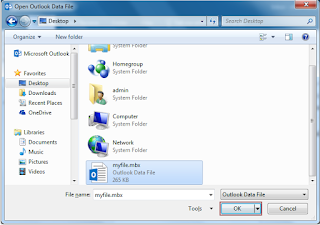
  • C:\Users\admin\AppData\Roaming\Cyrusoft\Mulberry\Mailboxes\POP3\POP3\myfile.mbx
  • C:\Documents and Settings\Administrator\Application Data\Cyrusoft\Mulberry\Mailboxes


This MBOX/MBX format is inaccessible if you want to convert Mulberry to Outlook. But wait I have a solution for you. Let me introduce you with the MBOX to PST converter software which convert “Mulberry emails to Outlook”.

Mulberry to Outlook converter works in a few simple steps:

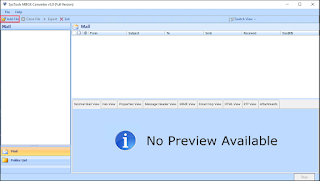
Step-1 :- Add MBX file from your system database where the Mulberry .mbx email files are stored by clicking Add file.


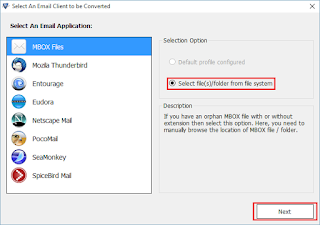
Step2 :- Choose the MBOX file format to start the conversion.


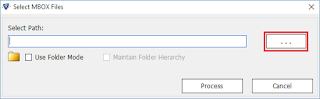
Step-3: - Select path of your mailbox file. Path is mentioned above


By clicking on Process, the conversion starts and within a few minutes your Mulberry mails are converted into Outlook completely.

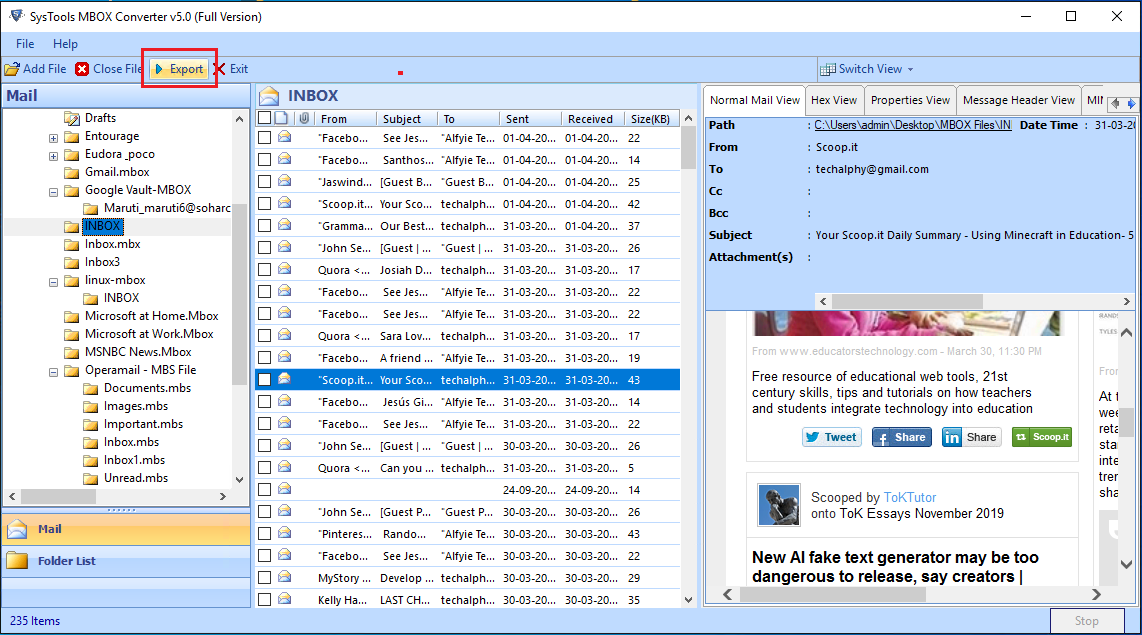
Step -4: - View your all Mulberry mail files.


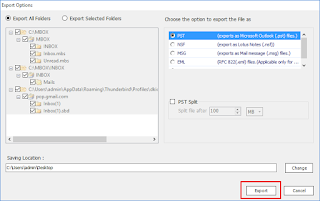
Step-5: - User is provided with the option of Export to PST also. 


Step-6:- Import Mulberry mails into Outlook.


Note: You can import your MBX file converted into Outlook data file(.pst) by clicking Open & Export in MS outlook.

If you want to convert Mulberry emails in Mac OS system, read the article to migrate MBOX to Outlook in Mac.

About Mulberry to Outlook Conversion

The tool to convert MBOX to PST is a standalone tool which means you can simply view your converted Mails without the installation of email clients at both ends. How is it possible? Well I know such confusions are genuine and for the clearance try the demo version of Mulberry to Outlook conversion tool for free.

This is a very powerful & reliable tool comes along with export option into various different formats apart from PST for example like PDF, NSF, EML, etc. Hence If you want to migrate from your old mail client and worried about file accessibility, corruption, file loss, etc., don’t bother or waste your time looking over the web when you have this Mulberry to Outlook conversion tool at free of cost.

Note: - MS Outlook installation is NOT required for Mulberry to Outlook conversion.

Conclusion

Mulberry is a free application for email management. However, MS Outlook surpasses Mulberry in terms of features and security updates. In this article, I provided an efficient method to convert Mulberry emails into Outlook accurately. 

Tuesday, 16 February 2016

Convert Yahoo Mail to Outlook - Technique to access Yahoo Mails locally

Let’s begin with brief Introduction

Yahoo Mail is a web-based email service. Explaining further Yahoo is the third most used online-emailing application/utility. It is a free service here user login with its personal account just assume it like the Gmail, Hotmail etc., mail clients.

A web based email-client needed 24-hour internet connection to read, view & open mails, contacts, attachments, drafts & other utilities provided. Hence most of the user migrate or prefer desktop based email clients for ease in accessing the mail and other utilities anytime locally too.

Outlook is a well-known desktop-based email client developed by Microsoft. As we know that talking about migration is easy but real migration from one mail client to another creates many serious issues.

Issues created while Converting Yahoo Mail to Outlook

Users which are using Yahoo mail must have faced these common issues with the UI, layout and user ability which causes inaccessibility to mailing utility means user can’t access their email messages most of the time. These issues are technical & server error including lack of tech-support leaves user with the only option to convert Yahoo mail to Outlook.

Now the question arises, How this Conversion of Yahoo mail into Outlook will be performed?
User always scared of these words migration, conversion, restoring because all these functions head towards data loss or the idea of data loss. However, the mentioned information definitely clears out this hypothetical issue, and make the “Yahoo Mails to Outlook conversion” process easier.

How to Convert Yahoo Mails to Outlook?

Migrating Yahoo Mail to Outlook sounds a bit hectic but with this Convert Yahoo mail to Outlook tool it will be a few clicks solution. Click here for Free Trial

Step -1: Login

This tool makes you to login to your Yahoo account first.

Step -2: Convert into Outlook PST format

After login the tool will let you choose the PST format for conversion. Note that the Yahoo mail to Outlook conversion tool also allowing you to choose destination path of your own choice, just to make the location easily find-able by user.

Step-3: Process Starts

After clicking “Start”, the tool starts the process of backing up your Yahoo mail for the conversion. This Yahoo mail conversion tool keeps each folder’s backup without skipping the trash even.


Step-4: Export to PST

Your conversion of Yahoo mail to Outlook is completed and now you can easily export Yahoo mail into Outlook.

 Your converted Yahoo mails into PST are shown in the screen below


 Well by the ease you are able to see, open, read folder of Yahoo mail to Outlook. Hence, overall you have now a copy of your Yahoo email database at your system locally, which means the problem of regular connection with server and its related issues are resolved by this tool to Convert Yahoo mail to Outlook.

Summing up - The tool to Convert Yahoo Mail to Outlook

Well as the working process is easy for you from above screens, I will sum up the features also that it is a standalone application hence does not need the Yahoo environment to backup & convert your data. Moreover, multiple export formats provided according to your need in its full version. Quick, light-weighted and useful tool to Convert Yahoo mail to Outlook, which I recommend to every Yahoo user.

Note: - Your machine needed Outlook installation in your system to export Yahoo mail to PST format.